Login and Dashboard Overview
This guide provides step-by-step instructions for logging into MAXRES Construct and navigating the dashboard.
Login to MAXRES Construct
To access MAXRES Construct, follow these steps:
- Open the MAXRES Construct login page.
- Enter your email address and password in the respective fields.
- Click the Log In button.
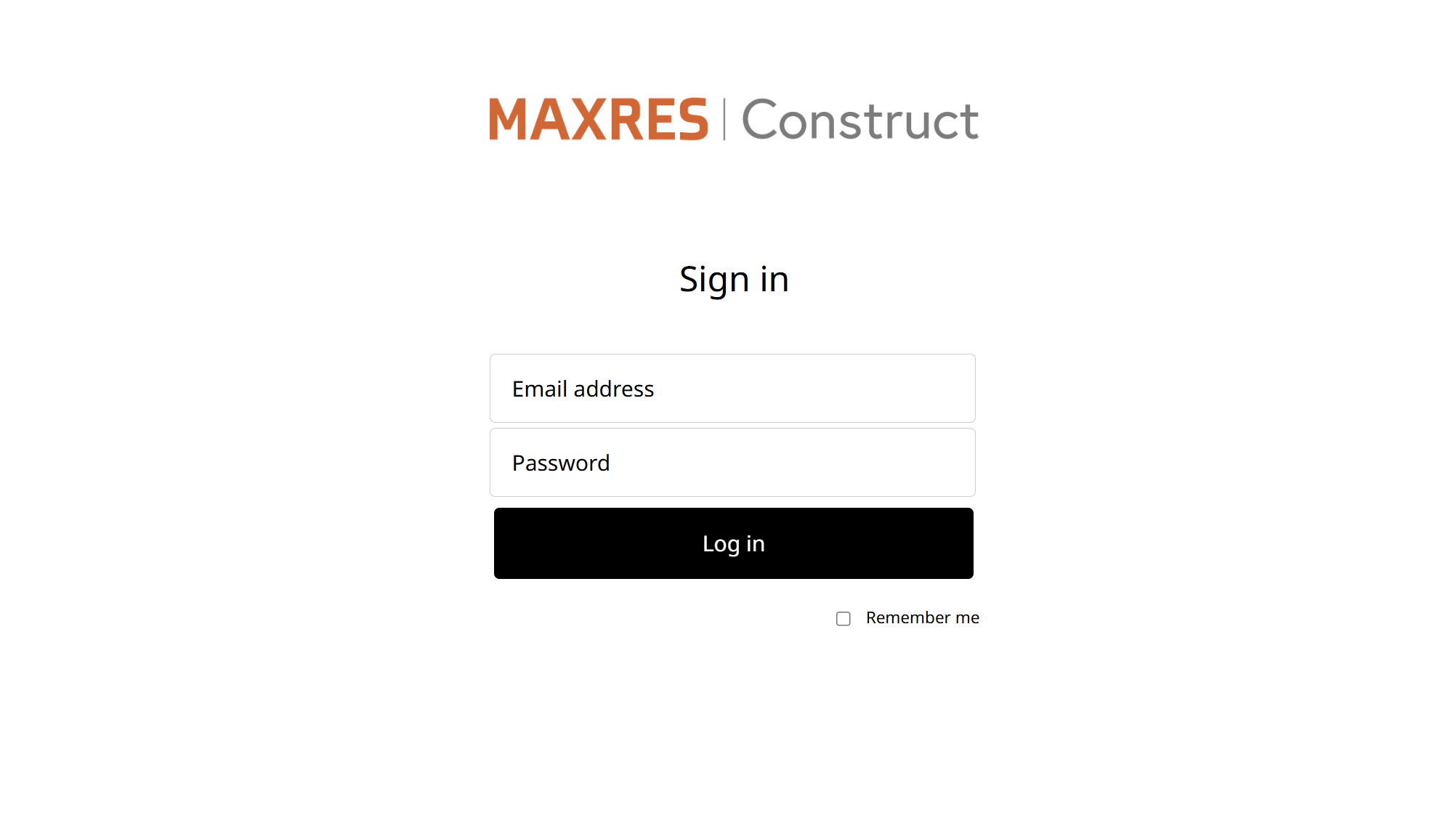 Figure 1: Login Page
Upon successful login, you will be redirected to the Dashboard.
MAXRES Construct Dashboard
The dashboard is the central hub of MAXRES Construct and is displayed immediately after logging in. By default, the My Courses page is shown.
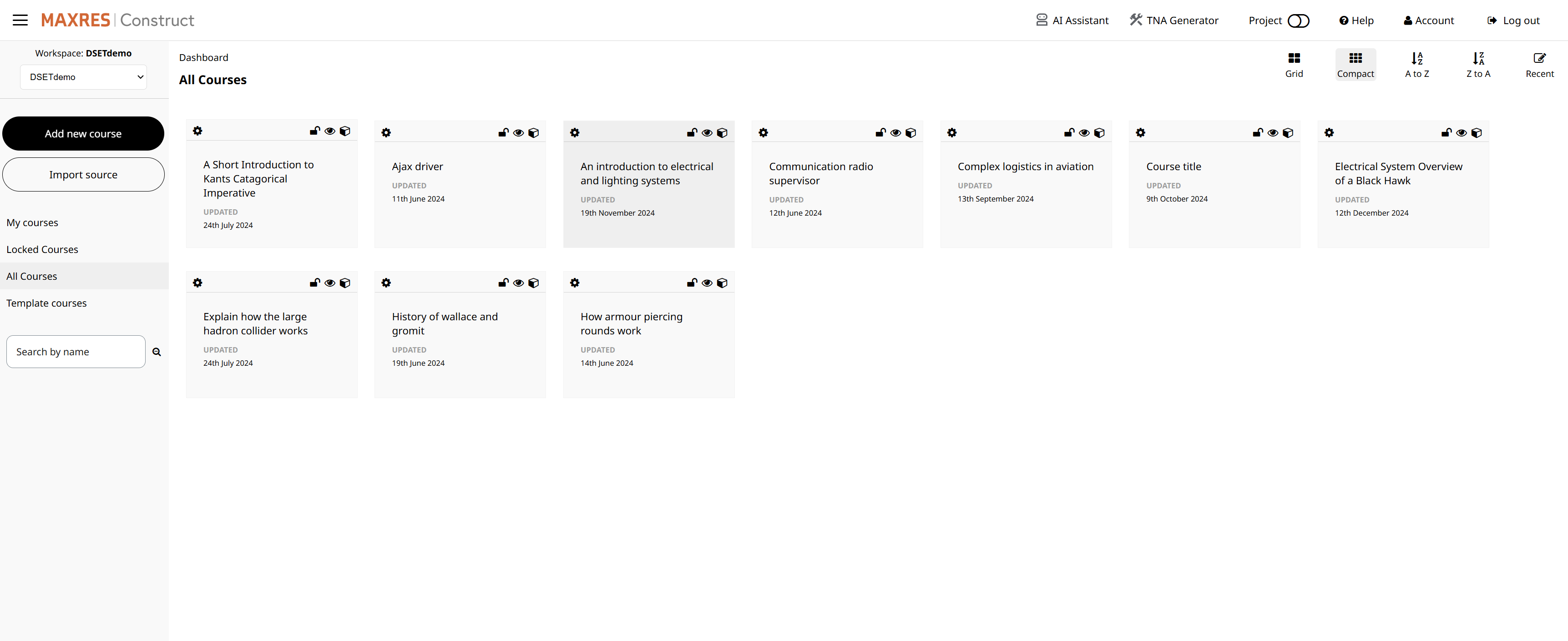 Figure 2: The MAXRES Construct Dashboard
Key Dashboard Features
-
My Courses (Default)
View courses that you have created or own. -
Add New Course
Create a new course from scratch. -
Import Source
Import an Adapt Framework course as source code into MAXRES Construct. -
Search for Courses
- Search by Name: Filter courses by their name.
- Search by Tag: Filter courses based on tags.
-
Edit Courses
Open a course for editing by selecting it from the dashboard. -
Profile Settings
Access and manage your profile settings, including email, name, and password updates. -
Management Tools
Navigate to tools for managing:- Assets
- Plugins
- Users
The dashboard provides a streamlined interface for managing and navigating all your courses and settings within MAXRES Construct.