Viewing Asset Usage Details
Overview
This guide explains how to check the usage of an asset in the MAXRES Construct platform. It covers navigation to the Asset Management view, viewing an asset’s usage, and replacing the asset either globally or in specific locations.
Objectives
By following this guide, you will:
- Locate and check where an asset is being used in the platform.
- Replace assets globally or in individual locations.
- Identify the type of element using the asset and its visibility status.
Requirements
- Platform Access: Permissions to manage assets in MAXRES Construct.
Roles
This guide is intended for:
- Content Developers
- Course Authors
- Asset Managers
Process
1. Navigate to Asset Management
-
Click the Hamburger menu in the top-left corner of the platform interface.
-
Select Asset Management from the menu to open the Asset Management view.
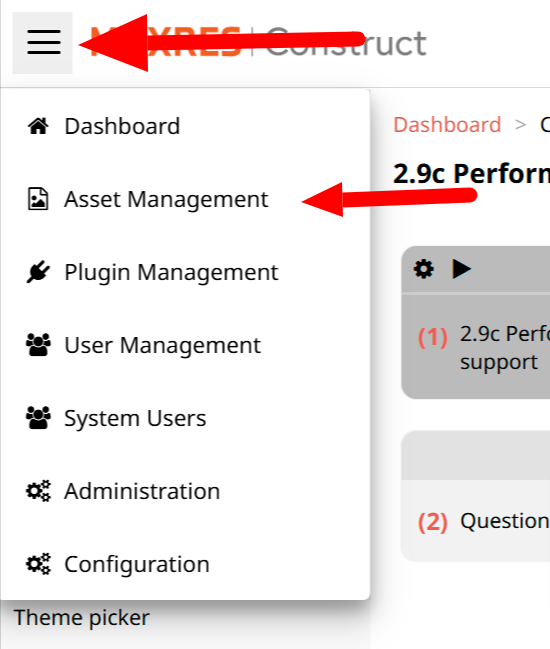 Figure 1: How to Access the Asset Management View
2. Search for or Select the Asset
-
In the Asset Management view, use the Search bar to find the asset you want to check.
-
Alternatively, manually browse and select the asset from the list.
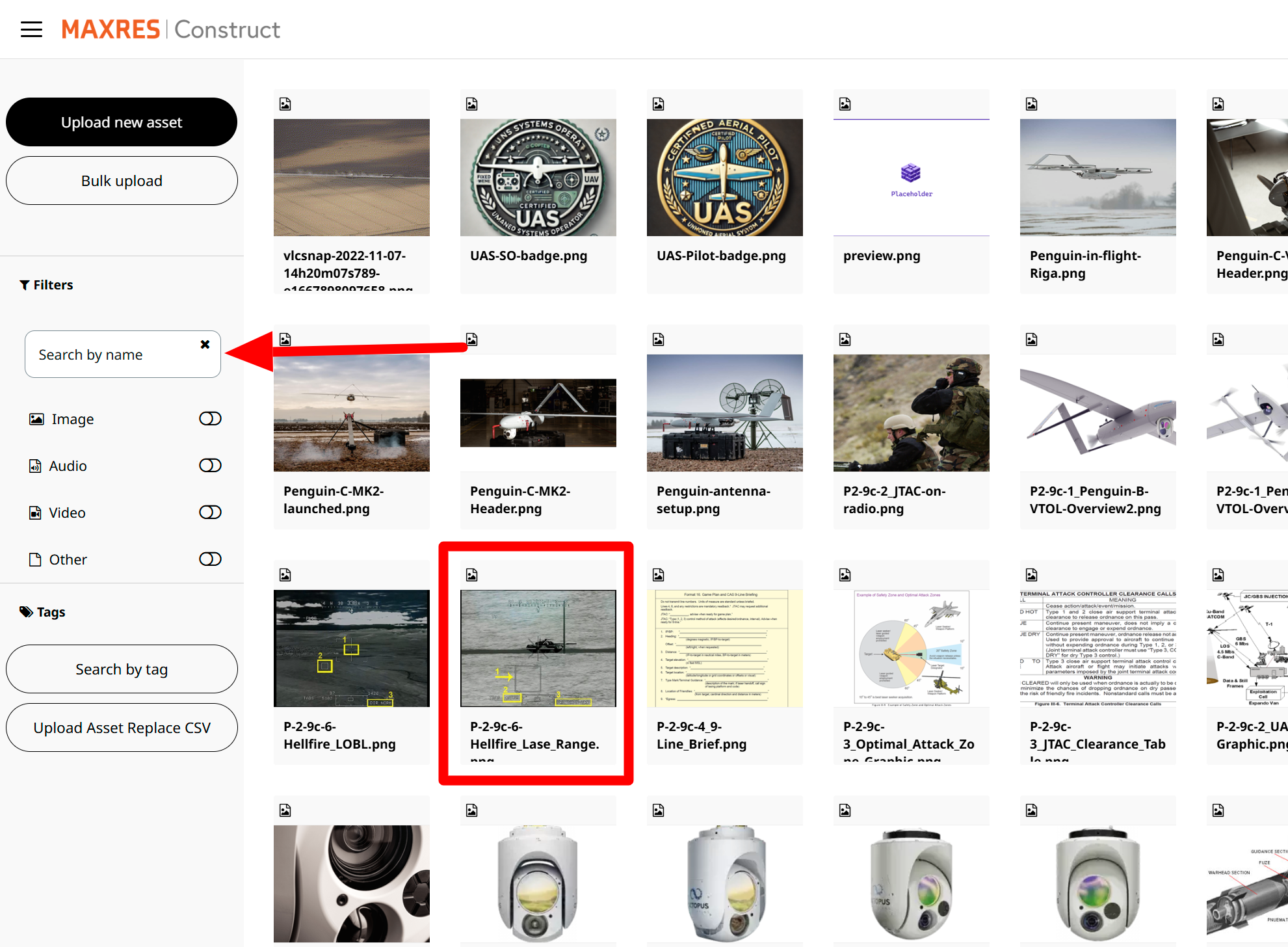 Figure 2: Select or Search for the Asset
3. Access the Asset Usage View
-
After selecting the asset, refer to the preview panel on the right-hand side.
-
Click the Usage button to display the Asset Usage View, which lists all locations where the asset is being used.
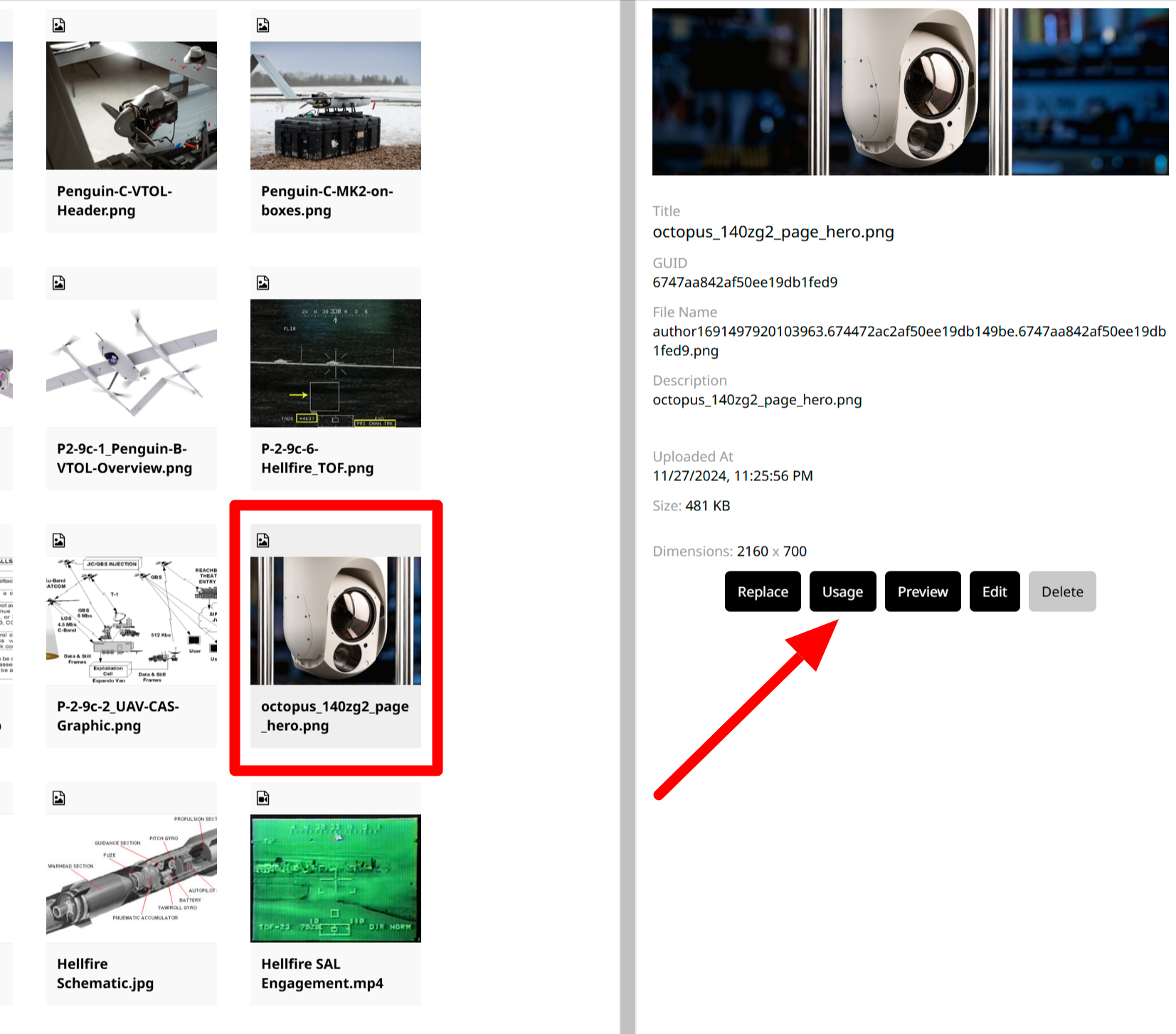 Figure 4: Checking Asset Usage
4. Replace the Asset
-
In the Asset Usage View, locate the Replace button.
-
Choose to:
- Replace the asset globally across all locations.
- Replace the asset selectively in individual locations.
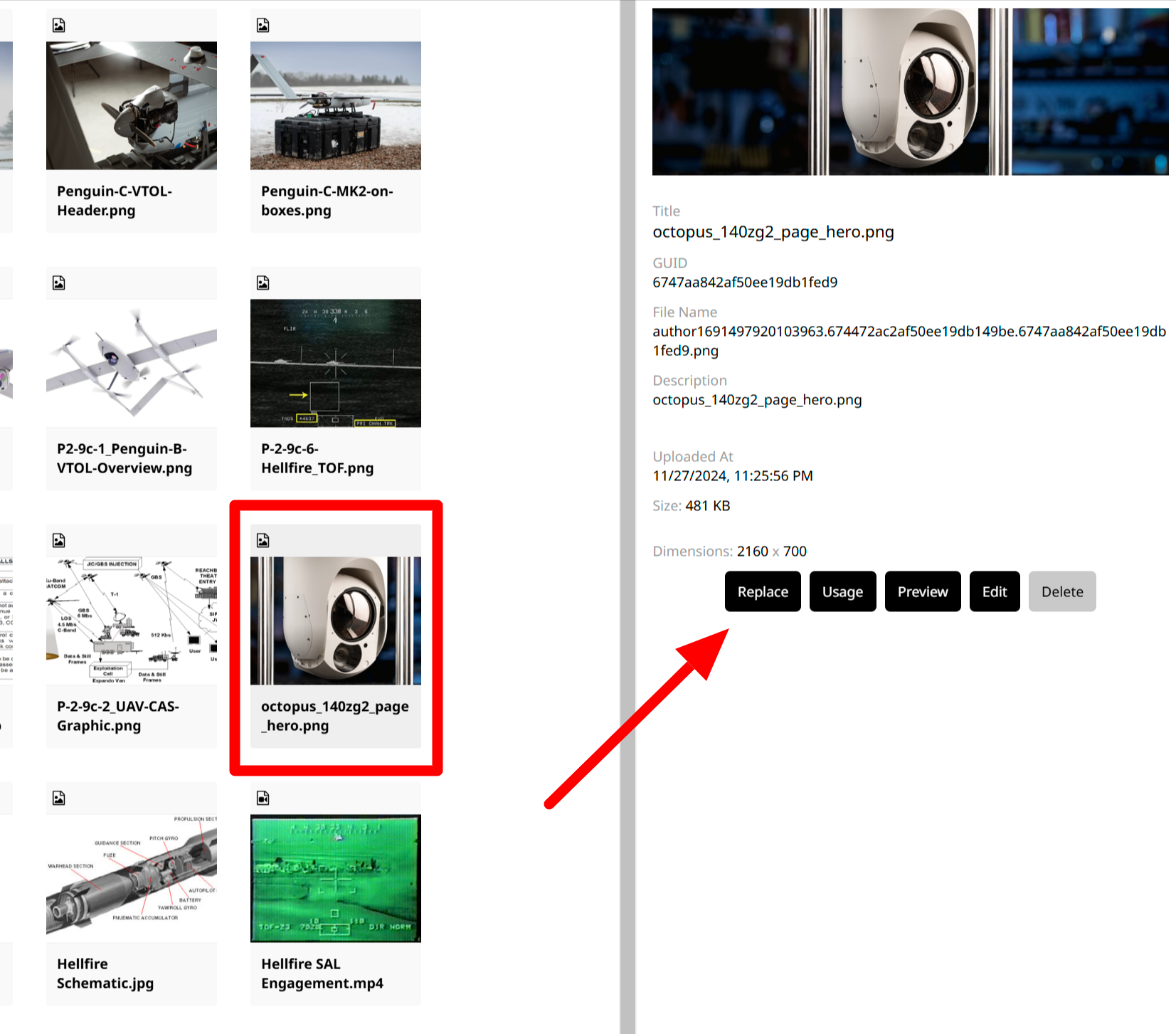 Figure 5: Replacing an Asset
5. Viewing Asset Usage Details
-
Use the Asset Usage Table to view detailed information about the asset’s usage within the Workspace.
-
Key details include:
- Element Type: The type of element (e.g., image, video, document) using the asset.
- Visibility Status: Whether the element is visible or hidden.
- Direct Links: Clickable links that navigate directly to the element using the asset, simplifying management and edits.
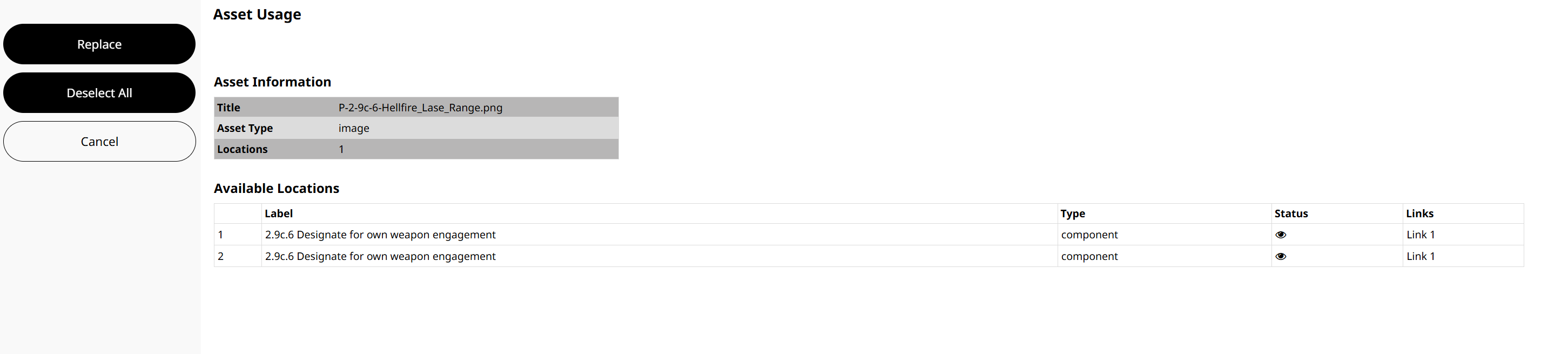 Figure 6: Viewing Asset Usage Details
By following these steps, you can efficiently manage assets and ensure their correct usage across your Workspace in MAXRES Construct.